This is the transcript of ProjectTeam's live webinar, "Your Data, Your AI: Connected Construction Management on Your Terms." It has been lightly edited for readability. The full recording and questions from the live Q&A are at the end of this blog.
Speakers
- Liv Linton, Product Marketing Manager, ProjectTeam (moderator)
- Josh Witmer, VP of Product, ProjectTeam
Welcome
Liv Linton: Hi, everyone, and welcome. Thank you for spending some time with us today. I'm Liv Linton, product marketing manager here at ProjectTeam.
This is the Your Data, Your AI webinar. A lot of you are probably already using tools like Claude or ChatGPT, and you've likely noticed that they're great at a lot of things. Today, we'll show you what they can do when they're connected to your ProjectTeam account.
Before we get started, I want to get a read of the room, so I'm launching a quick poll on where everybody is with AI today. There are a lot of options out there: ChatGPT, Claude, Microsoft Copilot, Google Gemini and plenty of others. Some of you may not be using AI yet, and that's okay. We're here to walk through everything we've connected with ProjectTeam and hopefully make you feel more comfortable. If you're using a model that isn't listed, put it in the chat. We'd love to see what everyone is using.
It looks like we have a lot of Copilot users here, and Claude as well. A couple of you may not be using AI just yet, but that's okay. We're going to go through everything it takes to get connected to ProjectTeam.
Now I'd like to introduce Josh Witmer, our VP of Product, who will walk you through what we can do with AI today. Take it away, Josh.
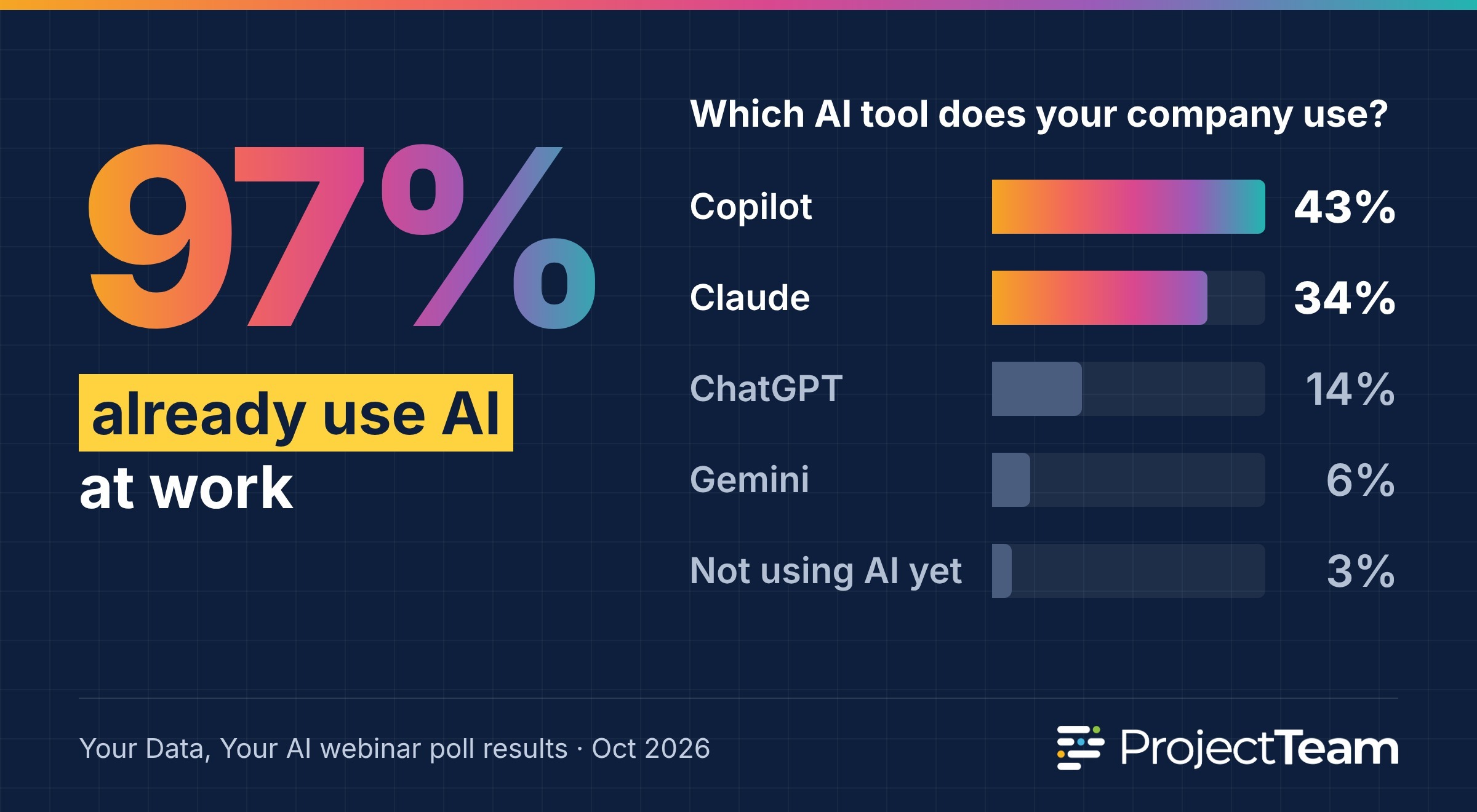
97% of organizations from the Your Data, Your AI webinar are using AI.
How ProjectTeam Connects to Claude, ChatGPT, Copilot, and Gemini
Josh Witmer: Thank you, Liv. As Liv mentioned, I'm Josh Witmer, and I run product here at ProjectTeam. Thanks for those poll results. Our focus today will mostly be on ChatGPT and Claude. You can do the same thing with Gemini, so if you're more of a Google shop, everything I show today will work for you too.
We'll talk a little about Copilot. Copilot works a bit differently, so we'll hold a follow-up webinar on it in about a month.
On the technical side, ProjectTeam connects through what's called an MCP to some of your favorite AI models: ChatGPT, Claude, Gemini and others. Copilot wraps an MCP in something called an agent, which needs to be verified in Microsoft's store. That process is underway and should be complete soon. Most of what I show today will stay consistent in Copilot, and you'll be able to get it from their marketplace.
So what does it mean to connect ProjectTeam to AI? ProjectTeam is a construction management platform. It handles RFIs, submittals, reports and much more. But when you're working in the core platform, you need to know a little about what you're looking for. If I want RFIs, I navigate to RFIs. If I want a specific RFI, I use search and filters to find it.
The benefit of connecting your favorite AI tool is that you can ask in plain English: What items are assigned to ABC Construction? What should I be focusing on today? Can you help me create this record?
We've set up today's session around three scenarios: a field user, someone working in the trailer or office, and a back-office administrator. There are hundreds of use cases. Everyone on LinkedIn is talking about AI and what it can do. The goal today is to introduce what we've been building on the ProjectTeam side and get you started.
Security: The AI Only Sees What You Can See
Before I go too far, a quick note about security. ProjectTeam is all about security. If you already use ProjectTeam, you know that security goes all the way down to the field level. If your admin adds a new custom field to a form, like an RFI or submittal, you can set field-level access on that specific field.
When you work with AI tools, that same level of security passes through everywhere. Users only get information their own account has access to.
Authentication works the same way. You sign in to ProjectTeam using your standard method. If you use a username and password, you'll use that when connecting. If you use SSO, that same SSO system stays with you as you authenticate.
The AI only returns what you ask for, based on your access. If I ask about schedules, risks or change orders, it pulls that data based on my permissions. I can never ask, "What projects does Liv have access to?" The AI won't give me that unless we're both on the project and it makes sense based on my access.
Finally, your organization is in control. AI is currently turned off for all organizations by default, and we can enable it when you ask. I'll explain how at the end of this presentation.
What the Connector Can and Can't Do
At a high level, you can find and read information you have access to. Ask, "What projects do I have access to?" or "Give me a list of RFIs in my court." Show me the schedules. Give me the tasks. What costs and contracts are assigned to ABC Construction?
You can also create data in many ways. I'll use Claude for most of my examples because it's my favorite. You can say, "Hey Claude, create a new RFI based on this email." Even if it's unstructured data, the tool will read it, work out what goes where and fill in the record. That works with essentially any form you use.
You can share information. If you say, "Share this record with Liv," it finds the right share group and sends it over.
From an administration standpoint, and I think this is really awesome, you can set up forms. You can create company-level forms, project-level forms and add fields to those forms.
What can't it do? Some of these limits are on purpose:
- You can't delete or obsolete records.
- You can't edit schedule or cost forms. You can read and summarize that data, but not edit it.
- You can't create new projects or manage users. You can list projects and read the project directory, for example to find someone's phone number or email.
Who Can Use the Connector
ProjectTeam has two user types by default: subscribers and contributors.
- Subscribers are paid users, and they have access. If you'd like it turned on, contact support@projectteam.com and we'll enable it.
- Contributors are free external users connected to a paying account. They don't have access today. If you'd like to upgrade to full access, contact sales@projectteam.com.
Only companies with AI turned on have access to it. And to reiterate, it's always based on your ProjectTeam access. You'll never reach something your user can't access in the core platform.
Scenario 1: In the Field
 Josh Witmer: I'm going to walk through three scenarios. The first is someone out in the field. Picture a superintendent on a project with just his phone and an AI app on it. I'm using Claude, but it could be ChatGPT, Gemini or another tool. Example prompts might be: What should I be working on? Can you create this record? Can you update this record?
This is not every possible use case. There are thousands, because we've built connectors to many different tools, and ProjectTeam supports custom forms too. But these are good ones to start with.
Checking Project Access
I'm on my phone, and I'll use voice-to-text because it's easier in the field. I'll start with a simple question: "Do I have access to the ADA Sidewalk project in ProjectTeam?"
It reads the access my user has and answers based on what it sees. Yes, I have access to that project.
Creating a Daily Observation Report from a Photo
Now let's say I'm in the field and need to write a field report. I might have a handwritten note, or something someone submitted to me. I'll take a picture of this handwritten note, select "use photo," and say: "Create a new daily observation report based on this image."
In the past, I might have had to retype everything someone wrote with pen and paper. Now it reads the note, finds the information and creates the record.
If I go to daily observation reports on my computer, I can see the new record, created at 2:15 my time. Claude confirms it's done, and when I open the record I see all the data it filled in. It read the field report I photographed and recreated it in ProjectTeam.
In this case it didn't share the record with anyone, because I didn't ask it to. When you set up the connector, you can decide whether you want it to ask you to review information every time before publishing, or trust it and go forward. Because this is a demo, I'm trusting it.
You can also choose your default sharing. Right now I share only to myself so I can clean things up after demos. But you could create a skill in your AI tool that says, "When I create this type of record, automatically share it to these share groups."
Updating a Record by Voice
You can edit data too. This record says there was no precipitation. But maybe it rained after I created the report. So I'll say: "Can you update that to say there was rain between 1 and 3 p.m. today, and it affected the concrete pour?"
Claude works out which areas of the form should be updated and makes the change. When I refresh the screen, the weather notes now say it rained between 1 and 3 p.m., and that the rain affected the concrete pour.
Pulling Up a Live Dashboard
You can also interact with your data generally. The daily observation was a custom form I built, but I could just as easily prompt for schedule and risk information, RFIs, submittals or anything else.
Depending on your tool, you can create things like artifacts. An artifact is like a custom dashboard, and I created one previously. So I'll say: "Bring up my risk and schedule artifact that I created previously."
Maybe I'm walking the jobsite and need to check how we're doing on schedule. I click the artifact and see data pulled live from ProjectTeam. You can build these dashboards on anything you have access to in ProjectTeam, and they stay up to date every time you run them.
Scheduling Automatic Briefings
Another really useful capability, related to artifacts, is scheduling. If something is important to you, you can say, "Every morning," or "Every week, give me a high-level summary of these items."
Yes, the core platform has scheduled reports. Those reports are very good at structured, exactly formatted data, but they can be complex to build. Claude or your AI tool can also push data to you automatically. If I want a morning brief, I just ask for it. Claude handles delivery every morning with the most up-to-date data, again based on my access.
Scenario 2: Back in the Office
 Josh Witmer: Scenario two is back in the office. I'm bringing up Claude on my desktop instead of my phone. Everything I'm doing could be done from either, but I want to show different examples.
Here, I might ask which RFIs and submittals matter most to me, pull information specific to a contractor like ABC Construction, or draft an email based on live data.
Finding What's Assigned to a Subcontractor
I've started a new chat, and I'll type: "On the ADA Sidewalk project, what RFIs and submittals are assigned to ABC Construction?"
The benefit is that I don't need to know where that lives in ProjectTeam. Maybe I have a meeting with ABC Construction coming up, and I want to make sure they're on top of everything.
While that loads, here's my RFI log in ProjectTeam, filtered to ABC Construction, for comparison. Claude comes back with the answer: eight RFIs and six submittals are assigned to ABC. Three RFIs are still open and past due, and every submittal assigned to them has been closed. It's reading the data specific to my question and returning it to me.
Drafting an Email from Live Data
Because I'm on my desktop, I'll say: "Help me draft an email about the open RFIs."
The most basic way people use AI is "help me format this letter" or "help me write this email." That's all good. But when you're connected to ProjectTeam, you can write those drafts based on real, live information. I can copy and paste, or if my email is connected, send it right from here.
In this case, Claude gave me two options: a friendly follow-up or one that sets a deadline. Both are based on live information about the three RFIs that are still open.
Identifying Risks and Creating Multiple Records
The last office example: say my role is to identify risks on the project early. I'll say: "Look at the drawings and RFIs, create a list of five risks, and add them to the project."
I want the AI to understand the data in my project. I'm limiting it to five items and pointing it at two forms, drawings and RFIs, though I could have included schedules or anything else.
In the field example, I took a picture of one document and created a single record. Here, I want it to analyze information and create multiple records: five risk records.
Once it's done, it shows the five records it created. It filled in the risk subject, level, probability, estimated cost and owner, linking it all together. When I go to Risks in ProjectTeam, the new risks are right there.
So instead of creating records one by one, I can read and better understand the data others are submitting. ProjectTeam is a collaborative system. Internal and external users are submitting information all the time. At some point, you can say, "Review that data and summarize it," or "Help me create new risks from it."
Each risk is shared only to me. If I open one, I see "too many overdue RFIs," with the supporting details and a cost estimate. I can edit it, then share it out or send it through a workflow so it gets the approval it needs. That gives me the opportunity to review everything first.
Scenario 3: Administrator Setup
 Josh Witmer: My third use case is one I think is really awesome, because it highlights how flexible ProjectTeam is. Say I'm in the back office as an administrator setting up forms. Maybe I'm going through implementation, or maybe the field told me we're getting too many RFIs and want a new field to prioritize them.
I could do everything I'm about to show in the core user interface. But I want to show that your AI tools can do it for you too, through the MCP. I'll show two things.
First, adding a new custom field. I'll go step by step. I could do it all in one prompt, but I want to show how you can edit as you go.
Second, building a brand new custom form. I'll describe it simply. But say you're migrating from another system and already have a paper form. Snap a picture and say, "Rebuild this in ProjectTeam." It finds the relevant data elements and builds the custom form for you. You can build it at the company level, so it pushes down to multiple projects, or make it project-specific. That's really powerful, and it can cut down implementation time significantly.
Adding a Custom Field to the RFI Form
Here's an RFI about existing electrical capacity for a classroom upgrade. I see RFI number, subject, discipline, category, question and so on. But say I'm an owner, or an engineer or architect reviewing a lot of RFIs, and I need a priority. There's no priority field here.
Only admins can do admin work through AI tools, and only if they have admin access in the core platform. I'll say: "Add a new pick list field to the RFI form called Priority, with three options: High, Medium and Low."
Claude confirms a priority field doesn't exist yet. Because ProjectTeam supports field-level access, it asks me who should have access to the new field: all users with read or edit access, the project team group only, or just me. I'll choose the project team group only and make the field not required.
When I refresh, the new Priority field is on the RFI, and it even added help text. When I edit the form, I see the three options. I'll mark this RFI as high priority and save.
Reworking the Form Layout
Right now the field sits at the bottom of the form. Claude also assigned colors: red for High, orange for Medium and yellow for Low. If I want to change those, I can.
First I'll say: "Move the Priority field up under the RFI Number field." When I refresh, Priority sits right under RFI Number. So it can add custom fields and also rework how the form looks.
Then I'll say: "Change the color of High to purple." It edits the field settings it created originally, and High is now purple.
If you're not familiar with ProjectTeam: when I go to my RFI log and configure it, I can add Priority as a column and make quick edits right from the log. Every RFI now has the new custom field, with the colors, help text and options we set. If I decided High, Medium and Low didn't make sense and I wanted High and Normal, or Urgent, I could change that too.
Building a New Company-Level Custom Form
The last thing I'll show is creating a brand new custom form. Say I'm a company administrator. We're reaching the point in our projects where we're starting inspections. We had a good meeting about it, and I want an inspections form I can use across multiple projects. We might start on the ADA project, but I want it available elsewhere. In ProjectTeam, that's a custom company form.
I'll keep it simple and say: "Create a new company form called Z Special Inspections. Add a date field and a notes field to the form. Then add that form to the ADA Sidewalk project."
In the previous example, I added a single pick list field to an existing RFI form. Here, I have a custom need. I'm creating something new and adding it to the ADA Sidewalk project.
Claude confirms it's done. It added the form to the project with a subject, an inspection date and notes. It also created a variation, made the form not revisable (a property you can set on forms) and made it accessible only to me.
When I go to Forms and type "Z," I see Z Special Inspections, a brand new process created for me. If I create a new one, it has a date, a subject and notes, just as Claude described. If I wanted to add 50 more fields, I could. If I said, "I need an inspection form but I'm not sure what to track. Suggest some fields and add them," it could do that, with as many fields as you want.
I'll fill this one in as "Inspection 1," everything looks good, no issues, and create it. I have a log view of that data. Everything works as if I'd built it from scratch in the core platform. I can still customize it there too. For example, I could add a checkbox for "Is this closed?" It works the same either way.
Building forms in the core platform is easy, as you just saw. But if you're less familiar with it, the AI tool can help you build quickly. It will prompt you whenever it has a question, such as "Did you mean this or that?" or, when adding a custom field, "Who should have access?"
Another benefit of a company custom form: if I go to a different project, B Street Parking, Z Special Inspections isn't listed yet. But when I customize forms and add something new, there's the form we created. I select the standard variation, and now I can create special inspections on this project too.
So you can create customizations on individual projects, or at the company level and push them to the projects where they fit. I could also have built it into a project template. All of these use cases work in the core platform or through your AI tools.
Getting Started
Josh Witmer: A couple of key points to close on.
- Subscribers: You can get access to the AI tools today. Just let us know by reaching out to support, to me or to Liv after this call, and we'll get you set up.
- Contributors: Contact me, Liv or our sales team to get full access and start using the AI tools on your projects.
- Supported tools: ChatGPT, Claude and Gemini are all available today. Copilot is coming, probably within the next 30 days. Everything I showed will stay consistent wherever the tool supports it.
Closing
Liv Linton: Thank you, everybody, for joining us this afternoon. Josh, thank you for walking us through those scenarios and everything ProjectTeam can do with our favorite AI tools.
We'll follow up with the recording and answers to the questions we didn't get to today. I dropped a link to our website in the chat, where you can find more information. Keep an eye on your inbox for that follow-up.
Thanks, everyone. Have a great day.
Webinar Recording
Frequently Asked Questions
These questions were submitted by attendees during the live Q&A and have been edited for readability.