How construction managers connect Claude or ChatGPT to ProjectTeam with MCP: setup, security, and real construction workflows you can run from a chat.
A construction project manager works with information in many formats and many places: Field notes go from a notebook into a daily report, RFI status gets buried in email, and punch items get retyped at the end of a long shift. The information exists, but getting it in the right spot takes time.
AI tools can help construction managers with organizing and processing their project data. With the ProjectTeam Model Context Protocol (MCP) connector, you can connect Claude, ChatGPT, and other AI tools to your ProjectTeam.com account to create, update, and look up records in plain language. This guide covers what the connector does, how to set it up, and how to get more from it.
Claude and ChatGPT for Construction Managers Summary
The ProjectTeam MCP connector links your AI platform to your ProjectTeam.com account so teams can work with live project records directly from the chat session.
- You can create, update, and search RFIs, punch list items, field reports, directives, contract exhibits, and custom forms today.
- Setup takes a few minutes and requires a paid ProjectTeam Subscriber account.
- The connector uses your existing ProjectTeam permissions.
- ProjectTeam remains the system of record, so every record created through the connector follows the same audit trail as one entered by hand.
What Is the ProjectTeam MCP Connector?
The ProjectTeam MCP connector is a secure link between your ProjectTeam.com account and the AI platform your team uses. Once it is connected, Claude or ChatGPT can read and write ProjectTeam records on your behalf, using the same permissions you have already established.
It extends the ProjectTeam platform and its integrations into the chat window. There is no installation of new software or exporting data to a spreadsheet. You sign in once, choose your approval settings, and start working. The AI does the lookup or creates the record, while ProjectTeam remains the single source of truth
MCP in Plain Construction Terms
MCP is an open standard for connecting AI models to outside software and data. Anthropic introduced MCP in 2024, and OpenAI has since adopted it as well. That shared standard is why the ProjectTeam connector works in both ChatGPT and Claude.
Think of MCP like a transmittal. A transmittal does not change the drawings, but it defines what is being sent, to whom, and on what terms. MCP does the same for your data; it gives the AI a defined, permission-controlled way to request information from ProjectTeam.com and send updates back, without handing over the keys to the whole system.
Why Construction Managers Are Connecting AI Tools to Project Data
AI tools on their own have a lot of information about the construction industry in general, but little to none about your construction projects. Ask an AI chatbot about open RFIs on your hospital project and the best it can do is guess. However, when connected to a construction management platform where those RFIs live, it can answer with specific details from your actual records.
A single job produces RFIs, field reports, punch items, directives, and contract documents across owners, GCs, and subcontractors at the same time. When that information sits across disconnected systems, AI only sees part of the picture. When it sits in one connected platform, the AI works from current, complete records, limited to what each user already has permission to see in ProjectTeam. That is the core argument behind AI for construction management: AI is only as reliable as the project data behind it.
There is also an adoption argument. Many construction professionals already use AI for email drafts, meeting notes, and scope reviews. By connecting their AI tool directly to their construction management platform, it removes friction from going back and forth between the two tools. Better data going in means better decision making for owners, executives, and other stakeholders who depend on accurate project status updates.
What You Can Do With Claude and ChatGPT in ProjectTeam
The connector focuses on the forms construction teams use most often in field workflows, plus any custom forms your company has built. Here is the current scope, based on our ProjectTeam MCP connector setup guide.
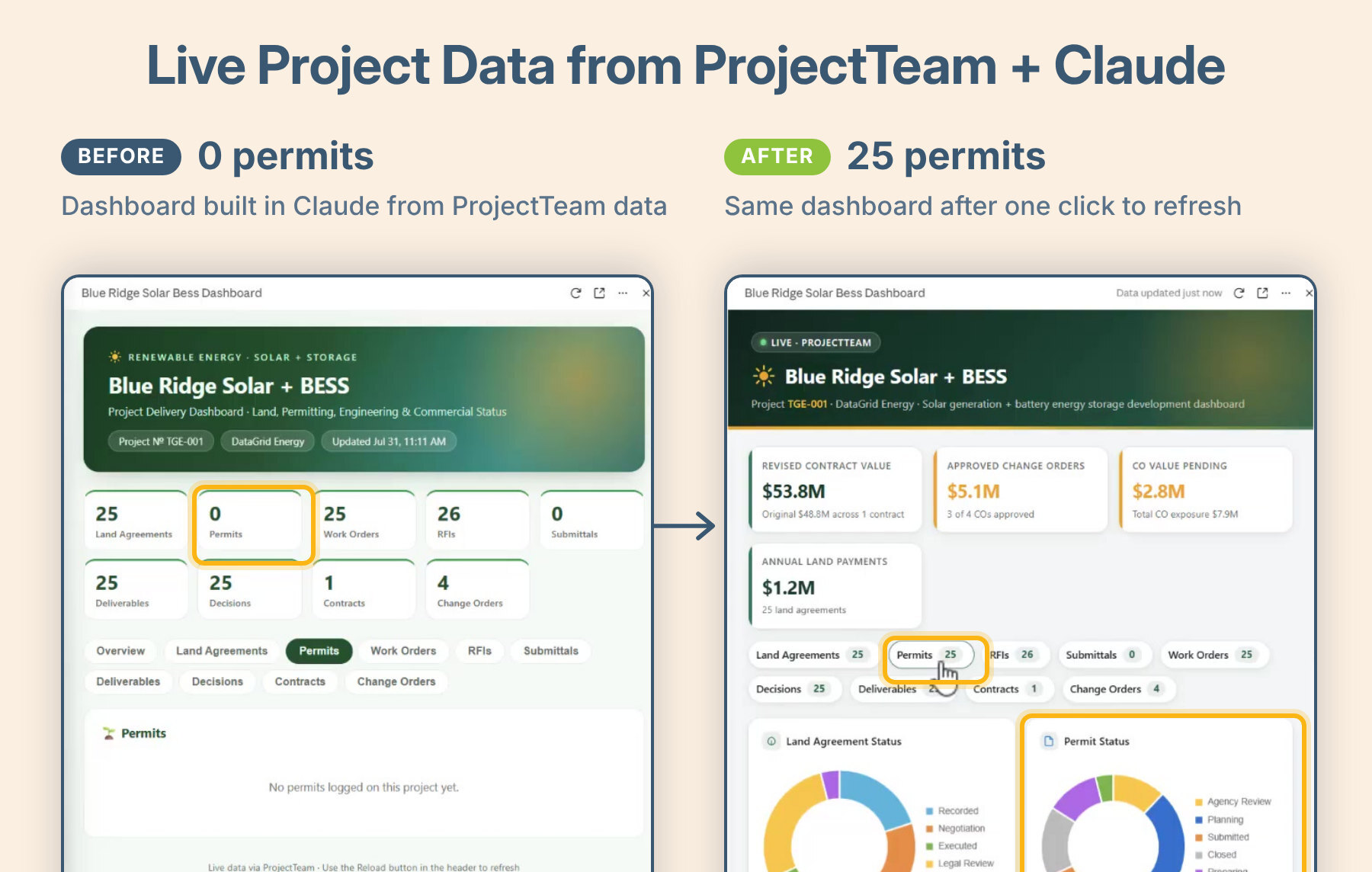
Before: a Claude dashboard built on ProjectTeam.com data shows 0 permits. After: the 25 permits imported into ProjectTeam.com appear in the same dashboard.
Supported Forms and Actions
Through the connector you can create, update, and retrieve (view and search) records for these form types:
- Requests for Information (RFIs)
- Punch List Items
- Field Reports
- Directives
- Contract Exhibits
- Any custom form type your company has configured with supported field types
Supported field types include single and multiline text, dates, numbers, currency, checkboxes, picklists, account codes, cost periods, email, phone, URL, and Project Directory contacts and businesses.
Custom forms widen the scope considerably. If your company tracks land agreements, permits, inspections, or maintenance work orders in ProjectTeam’s platform, the connector can work with those records too.
What Isn't Supported Yet
Deleting information is not supported through the connector. Records must be removed directly in ProjectTeam.com, which protects your audit trail from an accidental instruction in a chat. Every change made through the connector is logged the same way as a change made in ProjectTeam.com, with the user, date, and time recorded in the audit trail.
The addition of more capabilities and AI LLMs are in the works and planned for future releases. We will update this guide as coverage expands.
Real Construction Workflows You Can Run From a Chat
The fastest way to understand the connector is to see what it replaces. These four example workflows show how construction teams are putting it to use on active jobs.
Log a Field Report by Voice From the Jobsite
A superintendent finishing a walk through can open Claude or ChatGPT on mobile and dictate: "Create a field report for the Riverside Medical project. Clear, 68 degrees. Level three framing is complete. The drywall sub did not show." The AI maps that to the right fields, asks for approval, and files the report in ProjectTeam.com.
There is no need for typing this out on a tablet back in the truck or transcribed from a notebook later that evening. The daily record is captured while the details are fresh, which is exactly when it is most accurate and most defensible if a delay claim comes up later.
Draft and Track RFIs Without Switching Screens
A PM reviewing drawings spots a conflict between the structural drawings and the spec for embed plates. They describe the issue in the AI chat and ask it to create the RFI in ProjectTeam.com with the drawing reference, spec section, and question.
Follow-up works the same way. The PM asks "What is the status of RFI 042?" or "List every open RFI on the Blue Ridge project older than 10 days." AI returns live answers from the data in ProjectTeam.com, not from memory or a stale export. Directives follow the same pattern. If a superintendent needs to issue a stop-work instruction to a subcontractor, the AI creates the directive so it is documented the same day.
Build Punch Lists and Close Out Faster
Inspection walk throughs quickly produce long lists. Dictate items as you walk and the AI creates each Punch List Item in ProjectTeam.com with location and description. Later, ask "Which punch items are still open for the electrical sub?" and walk into the next coordination meeting with a clean list.
Create a Live Project Dashboard With Claude
ProjectTeam’s VP of Product, Josh Witmer, recorded a demo that shows a practical example of how Claude and ProjectTeam.com work together.
In the demo, Josh connects Claude to a renewable energy project that tracks land agreements, permits, RFIs, maintenance work orders, executive decisions, and consultant deliverables. He asks it to build a dashboard covering those records, style it for the industry, and save it as an artifact that he can reopen any time.
Claude builds an interactive dashboard with status charts, searchable logs, and a tab for each record type. It pulls fresh data from ProjectTeam.com each time it opens. When 25 permits are batch imported into ProjectTeam.com and the dashboard is refreshed, the new permits appear.
ProjectTeam.com already includes configurable dashboards and cross-project reporting. What the connector adds is options. Construction teams can work in the tool they prefer while ProjectTeam.com stays the system of record.
VP of Product, Josh Witmer, demonstrates Claude AI capabilities in ProjectTeam.com
How to Connect Claude and ChatGPT to ProjectTeam’s Construction Management Platform
Connecting Claude or ChatGPT to your ProjectTeam.com account is straightforward. First, email support@projectteam.com to have the AI connector enabled for your account. We turn it on by request during the early release so we can support each team through setup.
To connect Claude, you need a paid ProjectTeam Subscriber account (Standard User or Company Administrator) and access to Claude on desktop or the web. Contributor (non-paying) accounts cannot connect.
ChatGPT connects through Developer Mode, which OpenAI makes available on Plus, Pro, Business, Enterprise, and Edu plans. The free plan is not eligible. The same ProjectTeam account requirements apply.
Claude Desktop and Web Setup
- Email support@projectteam.com to have the AI connector enabled for your account.
- In Claude, open Customize, then Connectors in the left sidebar.
- Click Add in the top right.
- Enter "ProjectTeam" as the name and https://mcp.projectteam.com as the server URL, then click Add.
- Select ProjectTeam, click Connect, and sign in with your ProjectTeam.com credentials.
- In the connector settings, set read-only tools and write tools to "Always allow" or "Needs approval." We recommend "Needs approval" for write tools.
On Team and Enterprise plans, an Owner may need to add the connector at the organization level first. Once it is set up on desktop or web, you can also use it on your phone. In the Claude mobile app, tap + (or type "/") in a conversation, choose Connectors, and turn on ProjectTeam.
ChatGPT Desktop and Web Setup
- Email support@projectteam.com to have the AI connector enabled for your account.
- Open Settings, then Apps, then Advanced settings, and turn on Developer Mode.
- Click Create app, name it "ProjectTeam," and choose Server URL as the connection type.
- Enter https://app.mcp.projectteam.com, set authentication to OAuth, and save.
- Complete the OAuth sign-in with your ProjectTeam.com credentials.
- In a new chat, click +, then More, and select ProjectTeam.
Mobile works the same way it does in Claude. Finish setup on desktop or web first. Then tap + and More in the ChatGPT mobile app and select ProjectTeam.
Prompting Tips for Construction Workflows
The MCP connector handles the link between your AI tool and ProjectTeam data. AI tools respond best to specific requests, so your prompt determines how useful the result is. A few habits make a big difference:
- Name the project every time. Referencing specific projects by name removes guesswork when you work across several jobs.
- Use your own form names. If your construction company calls it a Daily Log instead of a Field Report, say Daily Log.
- Ask to see a draft before anything is saved. "Show me the RFI before you create it" gives you a chance to fix the wording.
- Ask follow-up questions. Treat the results like a conversation, not a one-time search.
Getting More Out of Your AI Tools for Construction Projects
Once the MCP connector is set up, Claude and ChatGPT each have features that save your team time when they work with their ProjectTeam.com data.
Claude Workspaces and Skills for Repeatable Project Manager Work
Claude Projects work as saved workspaces. Each workspace holds standing instructions and reference files, so you can set one up for each job with the contract, the spec book, and instructions like “always cite the drawing number and spec section in RFI drafts.” Every chat in that workspace starts with that context.
Claude skills take it a step further. Skills in Claude are packaged instructions that load when a task calls for them, such as your daily report format or your RFI writing standard. Build it once and every PM on the team gets the same structure, which is good news for construction PMs who review a lot of other people’s paperwork.
ChatGPT Workspaces and Custom GPTs for Each Job
ChatGPT offers a similar kind of workspace, also called Projects in the app. Set one up for each job with the spec book and your RFI standards, then turn on the ProjectTeam.com connector inside that workspace so ChatGPT can check your live job data against those standards.
For repeatable tasks, custom GPTs act like saved assistants. Set one up with your daily report format or RFI writing standard, and anyone on the team gets the same structure every time.
Security, Permissions, and Best Practices
Construction data includes contracts, pricing, and records that may end up in a dispute. The connector was built with that in mind.
Permissions Mirror Your ProjectTeam Access
The AI can only see and do what you could do while logged in to ProjectTeam.com. Your existing project and form permissions still apply. Data is encrypted in transit and limited to the connection between ProjectTeam.com and your AI platform, and the connection stays active until you disconnect it.
For owners and agencies with strict project controls requirements, the record matters as much as the access. Every record created through the connector is a standard ProjectTeam record, with the same history and audit trail as one entered by hand, including who made each change and when.
Approve Changes Before They’re Saved
When the AI creates or updates a record, that change goes straight into ProjectTeam.com. Set the connector’s write tools to “Needs approval” until your team is comfortable, so nothing is saved until someone signs off. Check the field values before you approve and verify any AI-generated content before anyone relies on it. Our help center also recommends a few habits:
- Use established AI platforms only.
- Opt out of model training in your AI platform's settings if you want conversations kept private.
- Disconnect and reconnect periodically to pick up updated versions of the MCP server.
Frequently Asked Questions on AI for Construction Managers
Which AI Is Best for Construction Management?
The best option is the one your team will actually use, connected to your real project data. Claude and ChatGPT are both strong general-purpose models, and the ProjectTeam.com connector works with both. Choose based on what your company already licenses, what clears your IT and security review, and which interface your field and office teams prefer.
What Is an MCP Connector in Construction Management?
An MCP connector is a secure link between an AI assistant, such as Claude, and the construction software that holds your project records. It lets the AI look up, create, and update records within your existing permissions, so you can ask a question or log information in plain language instead of clicking through menus.
Is Our Project Data Safe When We Connect an AI Platform?
The connector can only reach what you could see when logged in to ProjectTeam.com, and data is encrypted in transit. It cannot delete records, and with approvals turned on, nothing is created or changed until someone on your team signs off. Construction companies with strict security reviews should also opt out of model training in Claude or whichever AI platform they use.
Should We Choose a Construction Management Platform With Built-In AI or Connect to AI with MCP?
Each approach has its strengths, and the right choice depends on how your team works. Built-in AI works out of the box inside the software, with features designed around its screens and workflows, but you are limited to the AI model and capabilities the vendor chooses.
Connecting an AI platform through MCP takes a few minutes of setup and a separate AI subscription. In return, your team can use the AI tool it already knows and your company has already approved, and that tool can work across your other connected apps, not just one system. ProjectTeam intentionally chose the connector approach because it is a good fit with our connected platform and it gives teams the flexibility to choose the AI platform that suits how they work.
Who Can Use the ProjectTeam MCP Connector?
Any paid ProjectTeam Subscriber, including Standard Users and Company Administrators, can connect. Free Contributor accounts cannot. On the AI side, Claude works on desktop, web, and mobile once it is set up, while ChatGPT requires a paid plan with Developer Mode.
Put Your Construction Project Data to Work
Artificial intelligence is only as useful as the data it can reach. A disconnected chatbot can write a polite email, but a connected one can pull every open RFI before your next coordination meeting.
ProjectTeam.com is built as a connected project management platform for construction, where owners, general contractors, and subcontractors share project records on their terms. The MCP connector extends that connection to Claude and ChatGPT. Your team can capture field reports, RFIs, punch items, and custom form data from a chat while role-based permissions and the full audit trail stay intact. For anyone comparing project management software in construction, that connection is the question to ask.
See how the connector works with your forms and your projects.
Already a ProjectTeam.com user? Email support@projectteam.com to have the AI connector enabled for your account.
New to ProjectTeam and want to see it in action? Request a demo.